Verification Guide: Best Practices and Troubleshooting
Updated
Before starting verifications, make sure your environment, lighting, and Orb setup are ready.
These steps help prevent errors and ensure smooth sessions.
Power & Network
Power on the Orb and stand.
-
Confirm the device is online and connected to your location’s WiFi (or stable network).
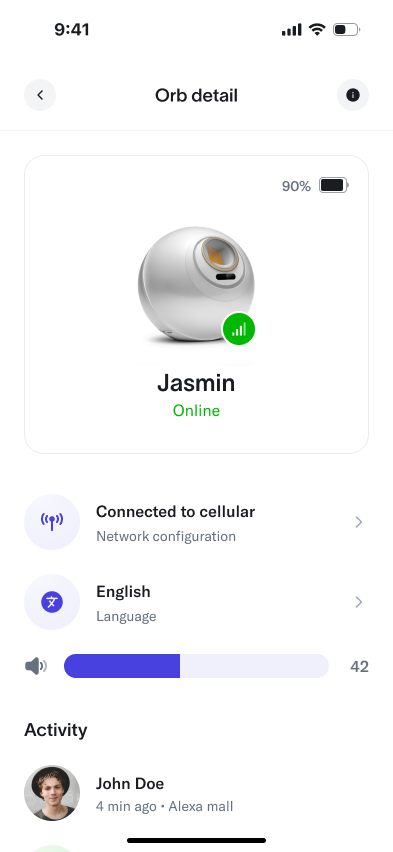
-
Activate the Orb by scanning the Operator QR Code in Orb App.
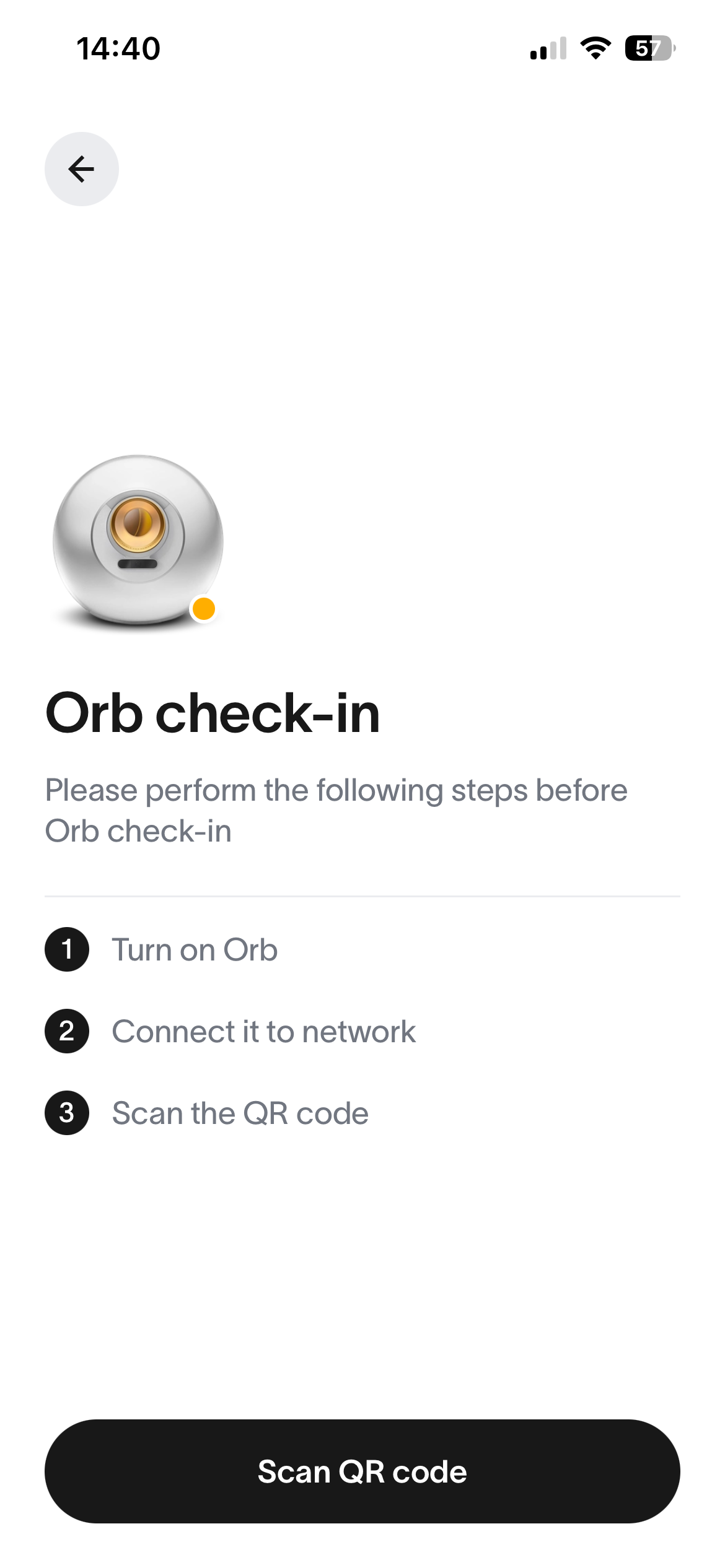
Note:You may need to re-activate after any reboot or software update.
Environment
Lighting
Use soft, even, office-like lighting. Avoid anything that creates glare or deep shadows.
Prefer warm-white lighting around ~3500K.
Avoid bright incandescent bulbs — they can interfere with the infrared sensors.
If the space is dim, add soft, diffused fill light towards the user's face.
Avoid reflections or shiny highlights in the eyes.
For new setups, quickly check light levels with a light-metre app to ensure both eyes are evenly illuminated.
Keep the Orb away from mirrors and reflective surfaces, LED walls, and strong directional lighting; avoid rapidly changing light.
Orb Placement
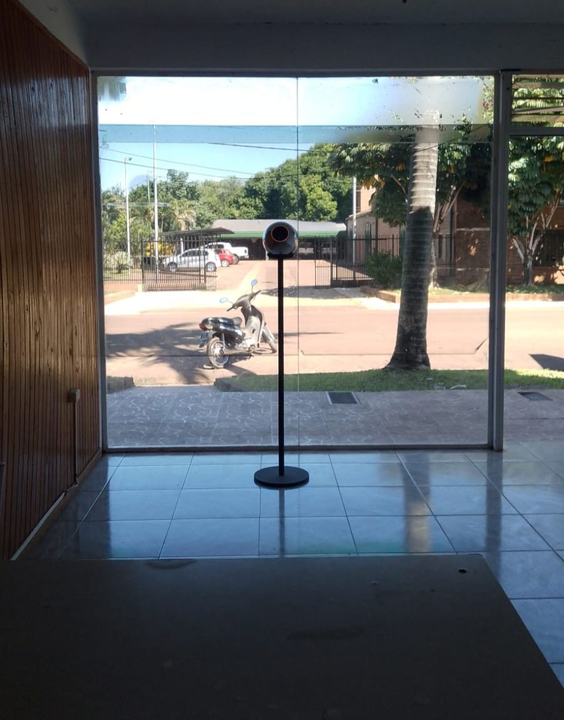
Keep the Orb 3+ metres away from windows, glass doors, or skylights (to prevent direct sunlight or backlight).
Align the stand along a wall to keep the background clean and distraction-free.
Maintain a tidy area around the Orb to avoid occlusions.
Position the Orb against a neutral background, ensuring it is on a stable stand. Place the Orb slightly below the user's eye level.
Examples
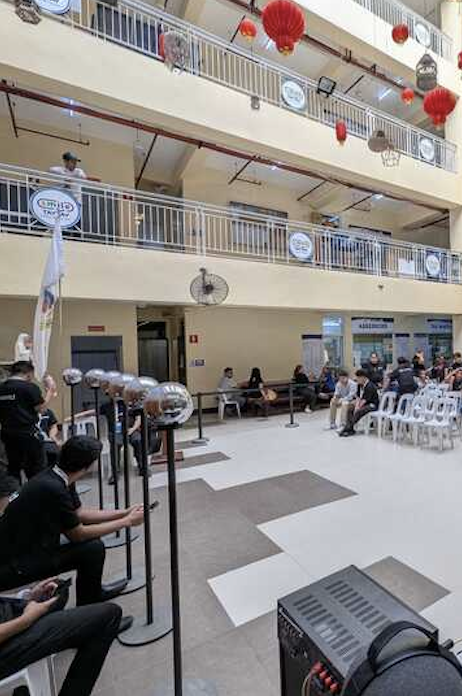
👍🏼 Good positioning
Orbs placed indoors, away from windows, with consistent lighting.
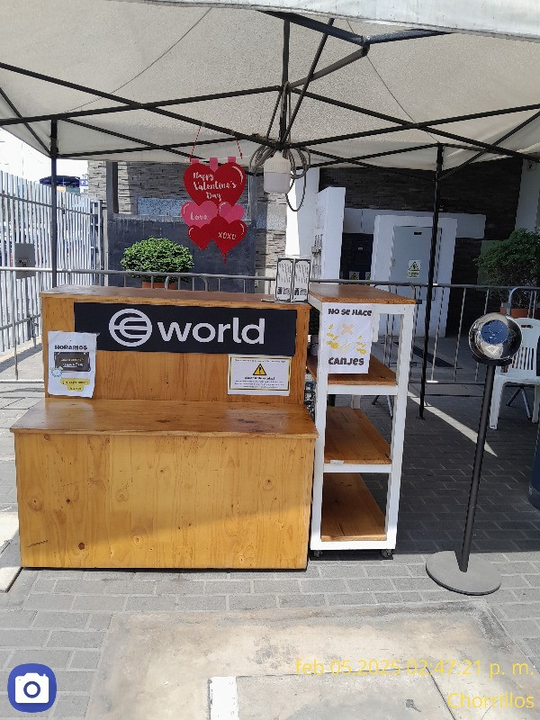
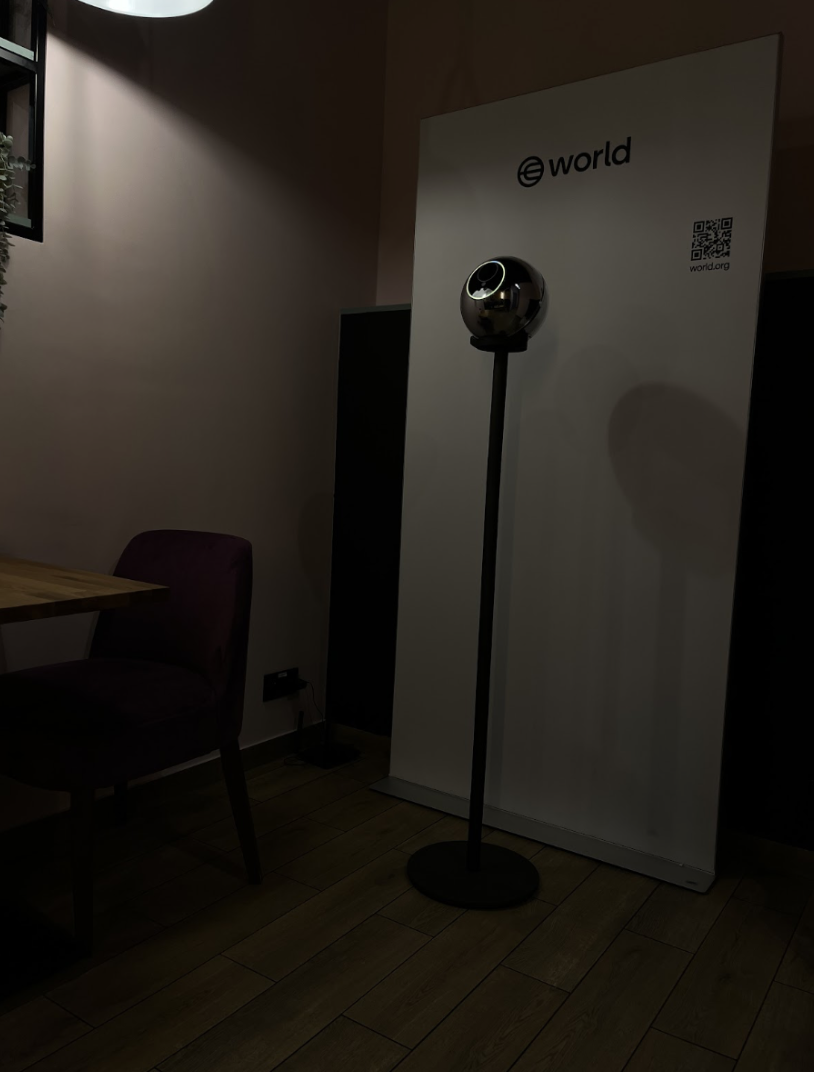
👎🏼 Bad positioning
Outdoors |
In front of direct sunlight or bright windows |
 |
 |
Under skylights |
In poorly lit areas |
 |
 |
Best Practices During Verifications
User Positioning
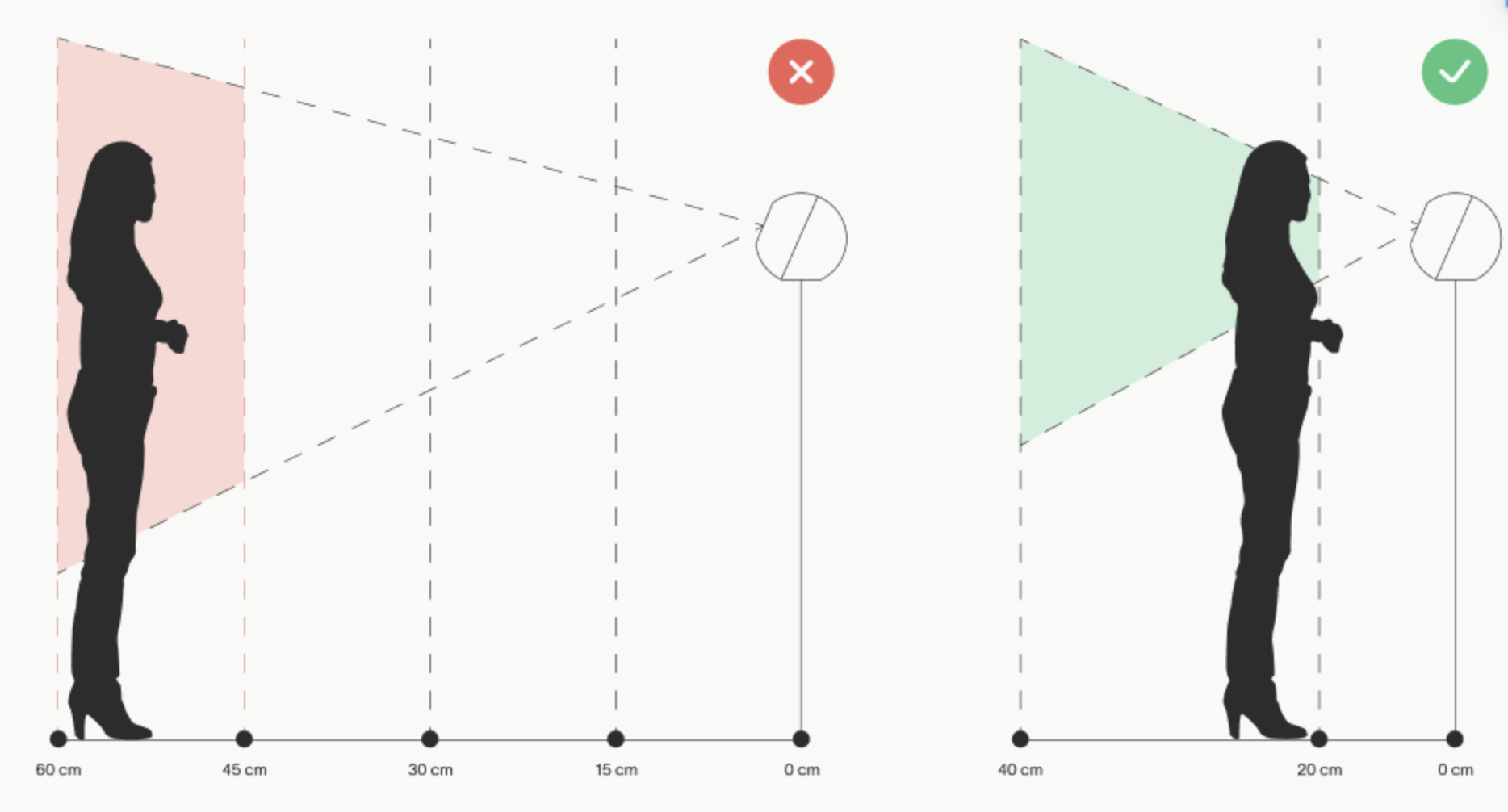
Distance & framing
Height & alignment
Head, gaze & stillness
Ask the user to keep their head straight, look directly at the Orb, and avoid blinking during the 3–5 second capture.
The Orb must not be touched or moved.
Obstructions
Remove sunglasses, reflective eyewear, hats, masks, hair, coloured contact lenses, or heavy reflective make-up (such as glitter around the eyes) that cover the eyes.
Lighting
Typical capture time
Troubleshooting (Step-by-Step)
Follow these steps in order. Move to the next only if the issue remains.
1. Quick triage
Check software version and Orb App health; update or restart if necessary.
Ensure the daily Operator QR code is active; re-scan after any restart/update.
Check ring lights and on-screen messages to identify the failure stage (QR, positioning, capture, network).
Confirm the Orb is online. (Some models don’t clearly indicate when they lose internet.)
2. Environment checks
Lighting: even lighting, no glare, no backlighting.
Placement: clean, neutral background facing the user.
Network: stable WiFi; if using a hotspot, keep it within 1–1.5 m.
3. User positioning
Centre the face and ensure both eyes are visible.
Ask them to look at the Orb and remain still.
Remove sunglasses, eyewear, or hair blocking the eyes.
4. QR & pairing issues
Confirm the user is on the correct screen in World App (appointment banner or “I am with an Orb now”).
Clean the Orb face and the phone screen; increase phone brightness.
If issues persist, re-activate the Orb using the Operator QR code.
If the user's phone still cannot connect, have them switch to a Guest network (if available).
5. Capture quality / “outside view” errors
6. Persistent timeouts or repeated failures
If issues continue, perform a Capacitor Test:
Start the Orb and let it run for 3 minutes.
Once fully on, remove the battery.
Measure how long it takes for the Orb to shut down.
7. Backend failure states
8. Logs & reproducibility
Note the exact ring light pattern and message stage.
From approximately 2 metres away, record a short video showing the full sequence (LEDs + audio).
Share it with Support if needed.
9. Reset & re-test
Power cycle the Orb.
Wait for a stable network connection.
Re-scan the Operator QR code.
Test with a known-good user or test QR to isolate environmental vs user factors.
If multiple users fail in a row after network checks:
Record a short video and contact Support with:
Ring light patterns
Capacitor test result
Orb ID
Time & location
10. When to contact Support immediately
Systematic timeouts across multiple users
LED patterns suggesting hardware issues
Repeated pairing failures despite correct app screens and clean optics
Quick Troubleshooting
User QR code will not scan / pairing fails
Poor capture quality
Sessions stop mid-day
Repeated humanness or uniqueness fails
Translations may differ slightly from the original English content. For the most accurate information, please refer to the article's English version if there are any discrepancies.
<% } %>